01 / Documentation
Jifipedia Articles I Authored
Sample of articles I wrote for the Jifiti internal knowledge base
During my time at Jifiti I wrote internal knowledge-base articles on Jifipedia (Confluence) — step-by-step QA procedures, integration validation flows, and system documentation shared across R&D. Click any image to expand.
🔍
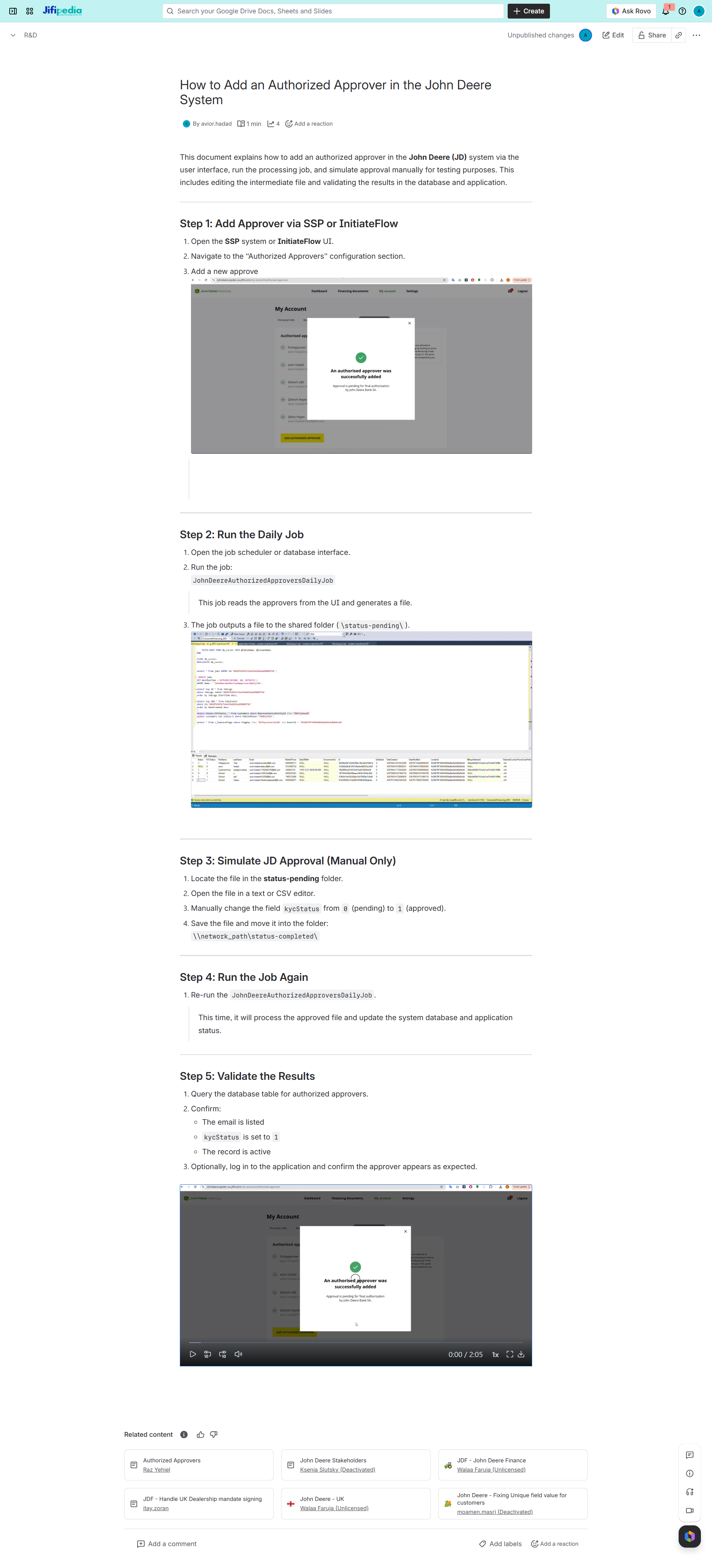
QA Procedure
How to Add an Authorized Approver in the John Deere System
🔍
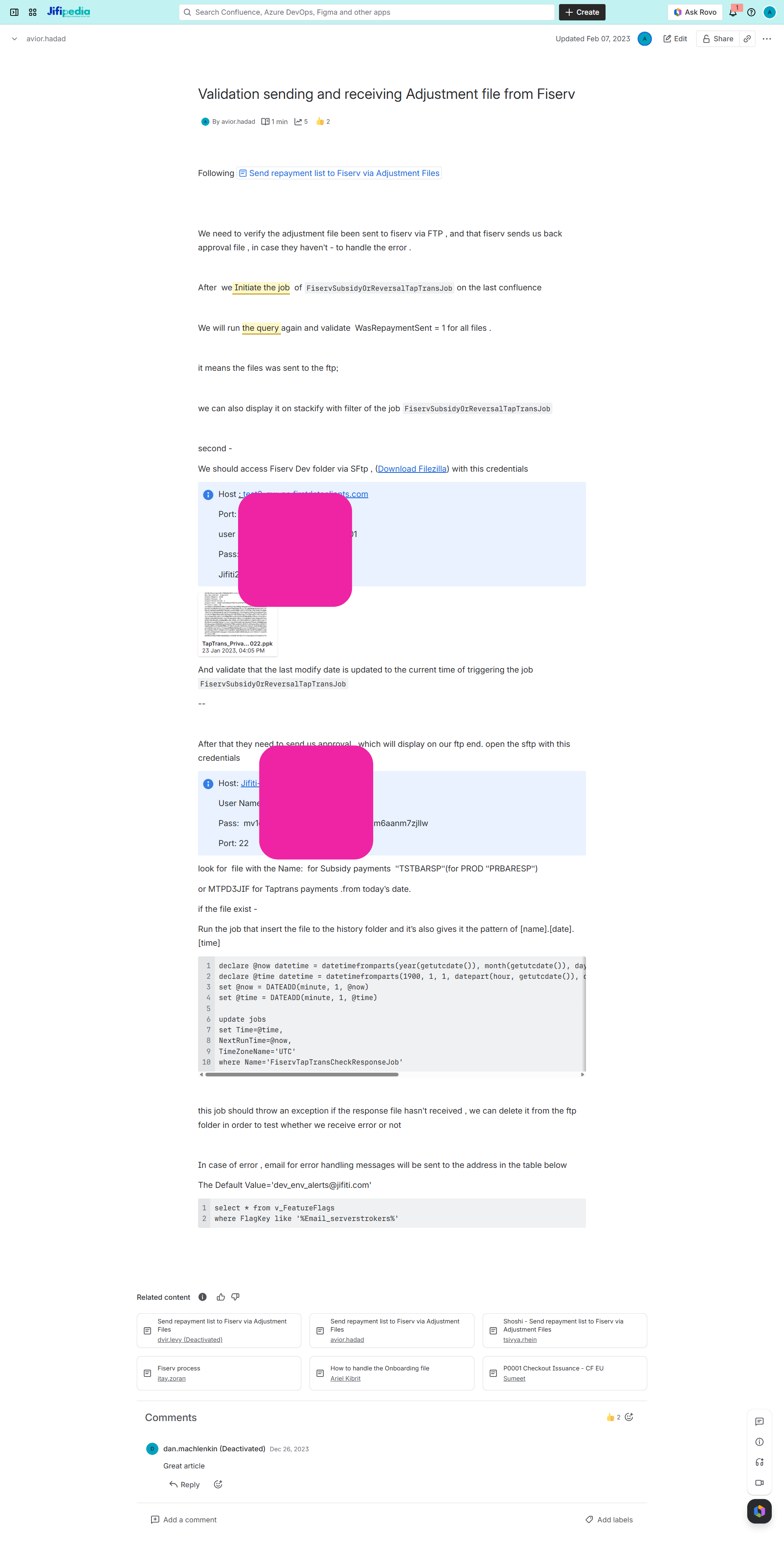
Integration Validation
Validation: Sending & Receiving Adjustment File from Fiserv
🔍
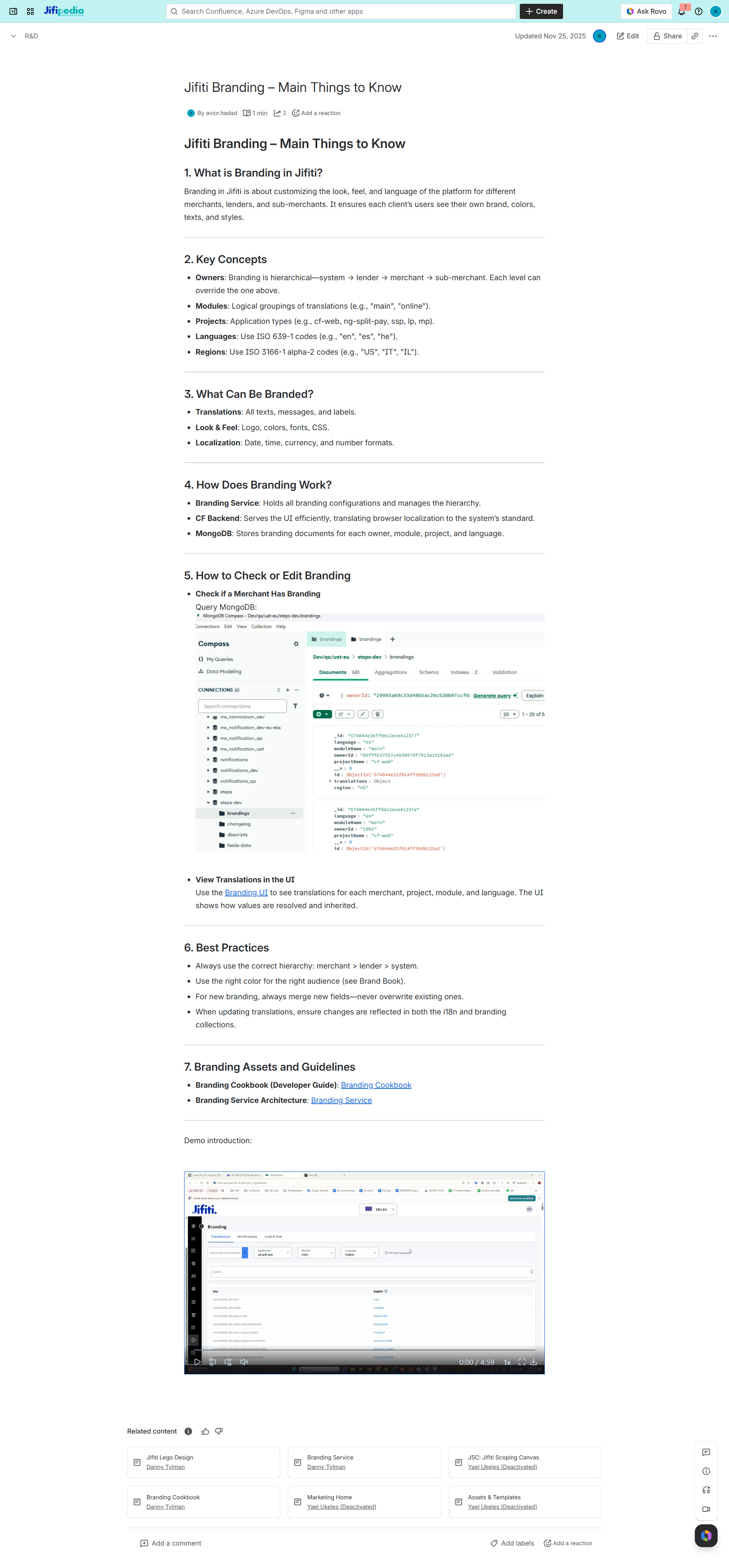
System Documentation
Jifiti Branding – Main Things to Know
02 / Knowledge Sharing
Instructional Videos
Sample of instructional content I created for QA onboarding and knowledge sharing
NotebookLM · QA Knowledge Session
Google NotebookLM · Jifiti Internal QA
▶ If it doesn’t load: open in Drive
Dynamic Translation System · Merchant Localization
English Tutorial · Internal System Demo
▶ A walkthrough of the dynamic translation system we built for merchant localization
✏️ Add a Video
02.5 / Work Samples
Sample Work Files
A sample of QA documents, test plans, and test cases I’ve created — password required to view.
🔒 These files are password-protected. Click to unlock and view.
03 / QA Tool
UI Design Diff
Sample of tools I've built to improve testing quality · ↗ Open full tool
UI Design Diff
No AI · 100% Deterministic
Step 01
Export from Figma
- Open screen in Figma
- Select the main Frame
- Run "Figma to JSON" plugin
- Drag the JSON file below
Step 02
Export from Browser
- Drag bookmarklet to browser bar
- Navigate to screen to test
- Click it — JSON + screenshot download
- Drag both files below
Step 03
Run the Diff
- All files dropped? ✓
- Click Run Deterministic Diff
- Review results inline
🔖 Browser Bookmarklets
Drag to your bookmarks bar. Click on any page to extract computed JSON (and optionally a screenshot).
↑ Drag to browser bookmarks bar · then click on any page
Figma JSON
Drop .json or browse
✓ File loaded
Computed JSON (Browser)
Drop .json or browse
✓ File loaded
📷 Screenshot (optional)
Drop image or browse